
An introduction to CSV and XCART
Article by: Iulian Lateș
Introduction
I am writing this article with the purpose of giving a better direction to the Web-Specialists and the Build-Team on how to create both CSV and XCART files. The main problem is that WS spend a lot of time creating .csv files but in the end, the builders ends up completely modifying them. The issue is mainly time-related as the WS team works to create a good CSV but there are still lots of errors when importing it to the store.
I want to remind everyone that some information does not belong to the CSV file but rather for XCART, in the following you can read a few of the issues that are usually found in the provided files.
CSV
The first issue and mainly the main issue is that colors and sizes are placed inside the category1, category2, category3 columns. This is completely wrong as colors and sizes are variations and can only be imported through XCART files.
Another issue is that in most cases, the categories are wrongly formatted. To have a subcategory for the main category we should use a slash "/" , not a comma "," . This information can also be found in the "How to create a CSV" article.
Many times we as builders, can find different symbols like the "£" on prices or the "kg" on weight. We only need numbers for the import process to work out.
On this note, please always remember that to successfully import a CSV in our eCommerce platform, the file should only contain the following:
- Name of the product
- The SKU which is very important to be created by the client because through the SKU number we can create XCART files that can import the product options and variations such as colors and sizes.
- Description
- Category 1, 2, 3 which should only contain the product categories, such as "Men", "Women", "Hoodie", "Pants", "Shoes".
- Image which should have the exact name, for example if an image is named IMG05043.jpeg, this exactly how the image should be placed inside the column. If the image does not have the exact name "IMG05043" and the exact extension ".jpeg" the images won't import and we would have to upload them one by one manually, it's not a problem for a list of under 80 products, but if we are working with a client with 100-150+ products, uploading images manually for every product takes too long.
- Weight if necessary (if not, leave empty). Please do not place the symbol of the weight, this should only be placed on the first row which is just a description of the rows and columns below. Please see image below.
- Price, please do not place any symbols for price, it is the same as with weight, the price should be "20" not "£20".
- Quantity if necessary (if not, leave empty)
- Shipping Freight if necessary (if not, leave empty)
Other notes: Please do not delimit items with ";" but instead use "," as CSV is comma delimited. Do not place letters in the number fields such as price or weight. Avoid using symbols anywhere but the description of a product.
The CSV should look similar to this, the one below is just one product that has 3 different main categories, each one having a different subcategory. As you can see there is no color or size to this example below. If you need to insert any additional details please do it on the row with the number 1 on each column that needs the extra details.

Figure 1
XCART
XCART should be completed separately with all the colors or sizes that the product has. So, for the above product in the CSV example, the XCART should look something similar to this:
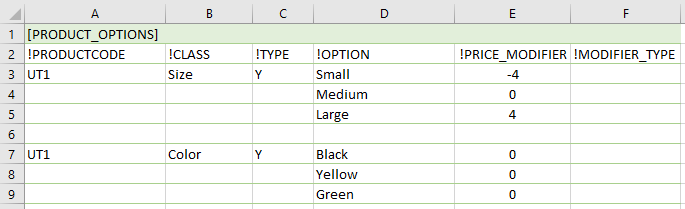
Figure 2
As you can see in the image above, the product SKU, can be found in the "!PRODUCTCODE" column. For every new option that the product "UT1" has, we need to place a row with a space above, you can see that on row 7, the SKU appears again but with an empty row above it, this is how the XCART differentiates one option from another.
Conclusion
To conclude, please strictly use the formats shown above or in the articles “How to create a CSV” and “Importing product options through XCART” if you ever have any questions or doubts you can always read through the following articles:
The above articles are from the official Ecwid support website and will answer any questions that you might have. You can also find every rule/exception/details in those articles.