Importing product options through XCART
Article by: Iulian Lates with the help of Gabriel Iscu
INTRO
This article is a simplified version of the official ecwid support article that you can find here through this I want to simplify the process of importing product options inside the ecwid dashboard through xcart. Through this process you can bulk update your store products however keep in mind that this also has a limit and you cannot for example add a date picker or upload new images.
There are a few requirements before starting out:
- The products for which you want to add the options need to already exist on your website. If you want to know how to import products, you can check out this article on how to create a CSV for product importing.
- You will need a list with the SKU of the products you want to import your product options.
- The list of the products and the options the client wants.
- Notepad ++
- The XCart file that you can download below.
GETTING THE XCART FILE READY
First of all you will need to download the xcart example file provided in this article then open up the file and you will see the following:
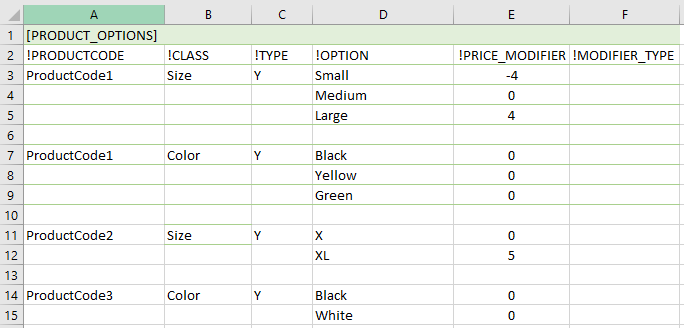
Figure 1
There is a meaning behind every code that you can see in that excel file. And here is a quick explanation of what everything means:
!PRODUCTCODE = sku, or the product unique identifier on the shop (has to be the same as the one already used on the shop)
!!! Please take in mind that the SKU of the product can either be a number or a string and you cannot import product options if a product has a SKU of 00001 but another product in the same XCart file has a SKU of LLB1. The SKU has to look the same to get imported.
!CLASS = this is how the option name will appear on the shop (ex. Color)
!OPTION = this is how the types of options will appear on the shop (ex. Black, White, etc.)
!PRICE_MODIFIER = if a client wants the price to change depending on the option chosen, we have to add here the amount that will change from the price already on the shop (if the client has no such preference, leave it as zero)
Ex: Client has a chocolate priced at £10 in the shop.
He wants to add a size option, and he wants the Medium sized chocolates to be keep their current price, but the new Large sized chocolates to be £16.
We would put 6 in the price modifier column next to the “Large” option name.
The system will then add 6 to the already setup 10, and when the client chooses “large” it will be priced at £16.
!MODIFIER_TYPE = if the client expresses the change in price via a percentage of the original price, type in % in this field. Otherwise leave empty.
If you want to see a more in depth list of everything, please check out this link where you can find some information that is a bit more technical.
I also have to mention that there has to be an empty row after each product, as you can see in the above image some rows (row 6, row 10, row 13) are empty. This is done to specify that we added a new product for which we need to modify the options. The only exception where we do not need an empty space is for the first product, you can see that in the above image, the first product sits on row 3 and directly above it, row 2 is completed with some declarations that xcart need in order to import the options.
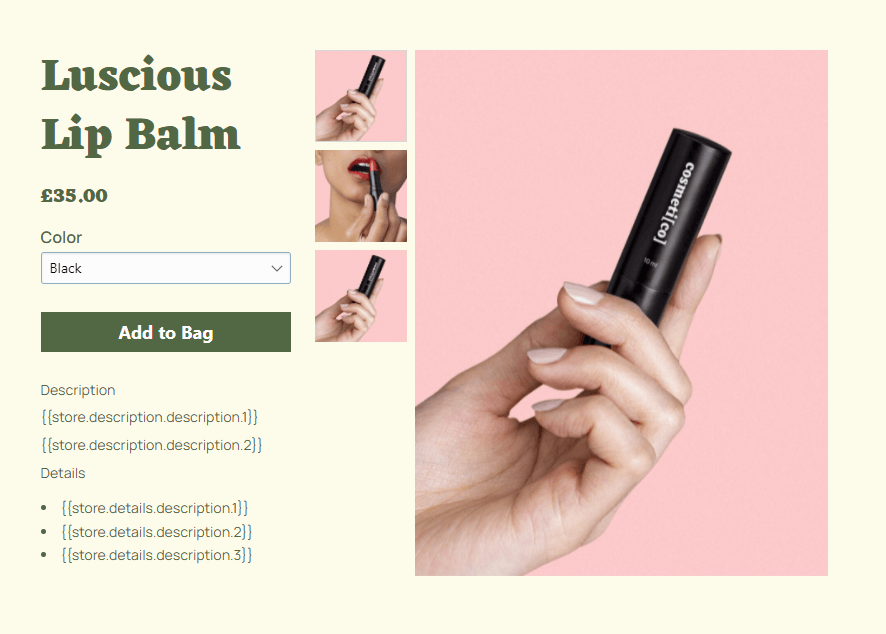
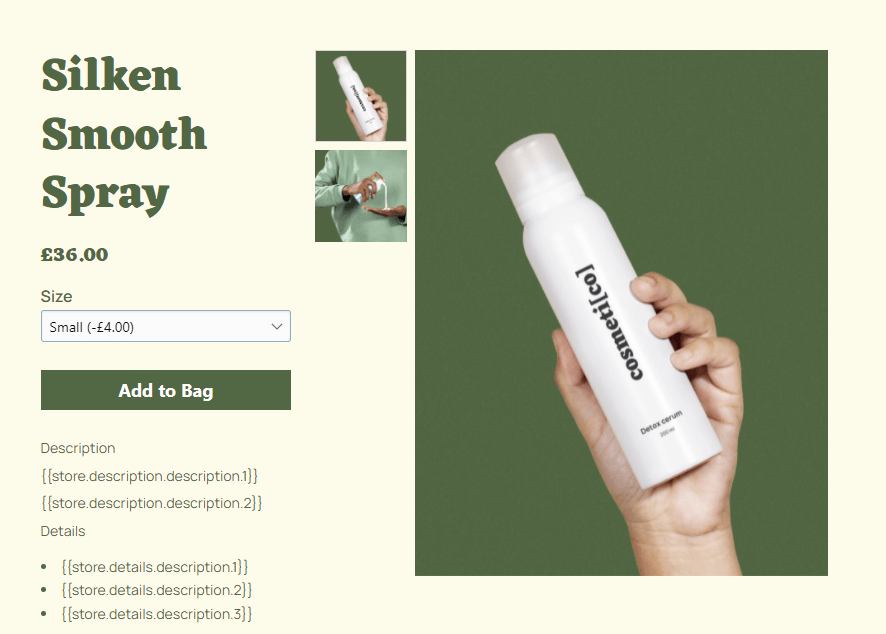
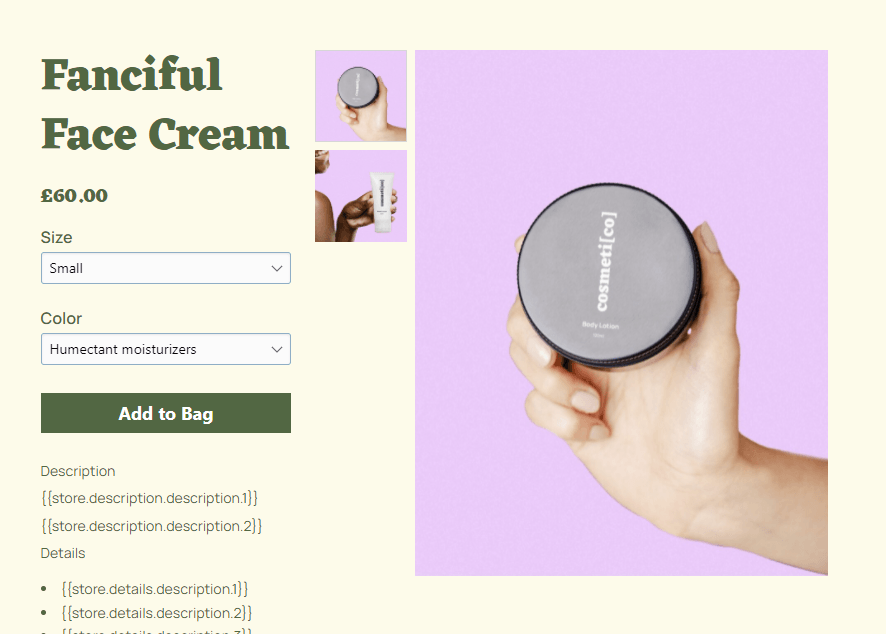
Now that you know what every data means you can complete the document for your own products. Below you can find 3 product examples from a demo store before importing xcart options and a screenshot with the xcart document that I completed for those 3 products.
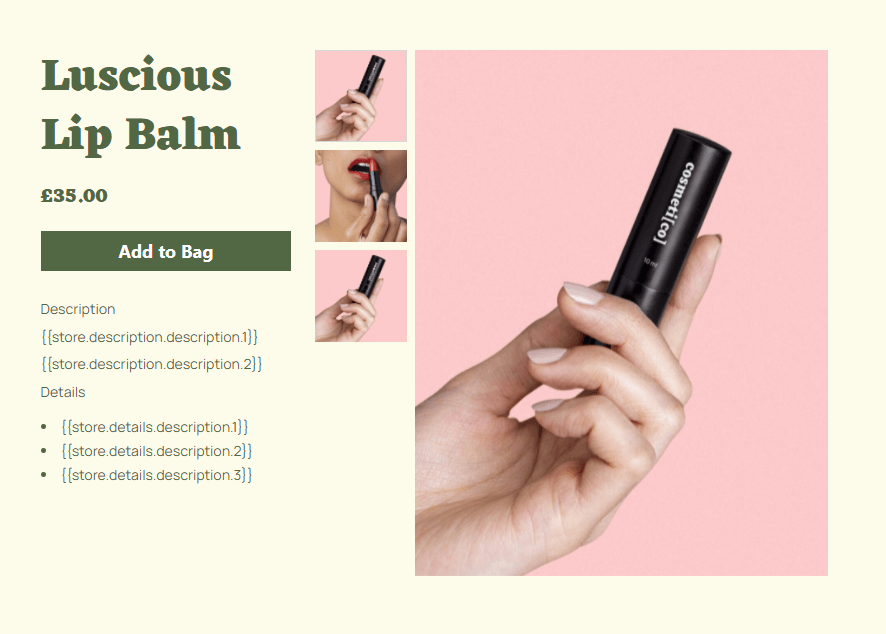
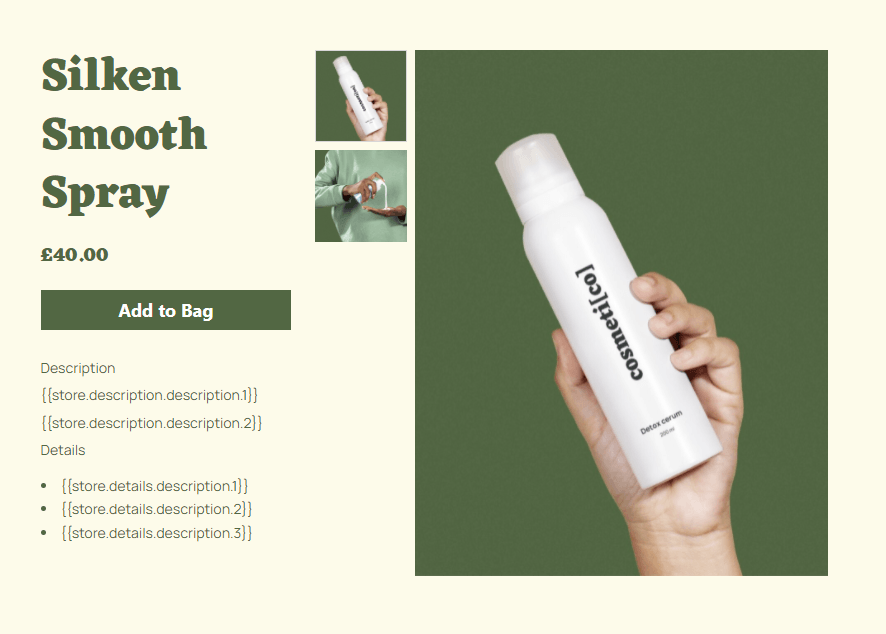
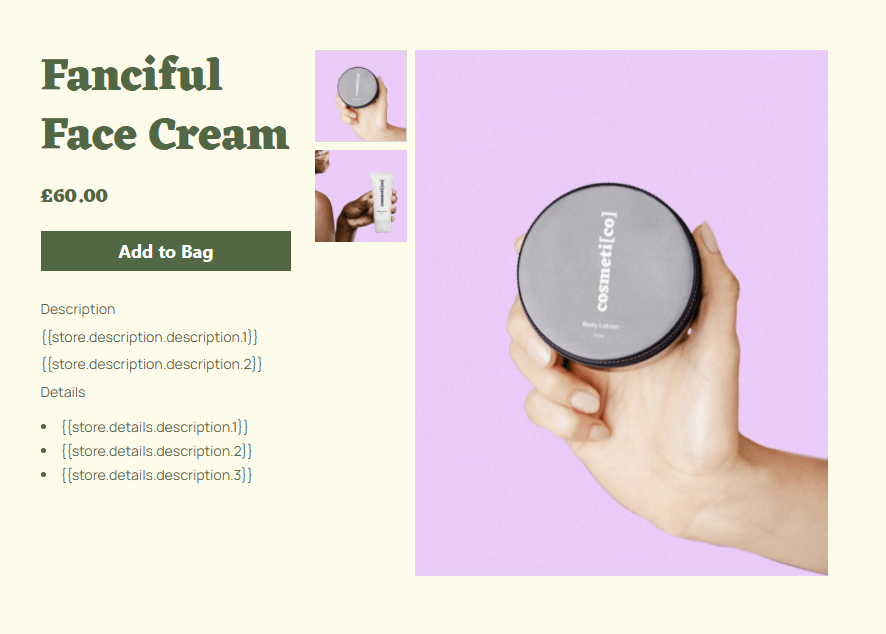
Figure 2
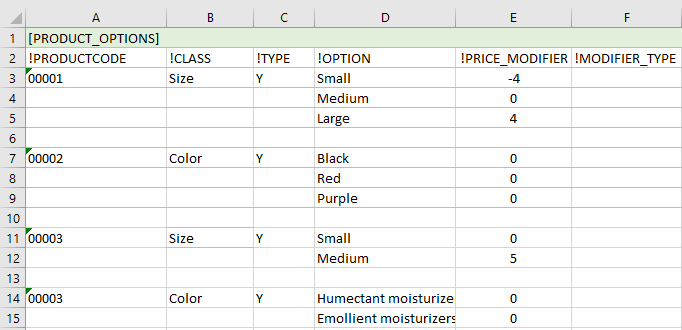
Figure 3
As you can see the product with the SKU "00003" appears twice. I have done this because I want to import two options for that product. If you want to import two options for the same product, you still need to add an empty space between the options.
NOTE: If your product SKU is like the one above ("00001") sometimes the software might delete those 0's in front, in this case you should format that column so the whole column would be shown as "text".
IMPORTING THE PRODUCT OPTIONS
Now that you have completed the XCart you will have to save the document as a CSV UTF-8 (Comma delimited) file. Go to the location where you have saved the CSV file and open it with Notepad ++ by right clicking on the document and selecting "Edit with Notepad++". After you have opened the document press CTRL+F and click the second tab that is named "Replace" and in the "Find What" field, type 5 commas ",,,,,". Leave the "Replace with" field empty and then click on "Replace All".
You can now save the document. Please do not open it with MS Excel again as some parameters might get modified.
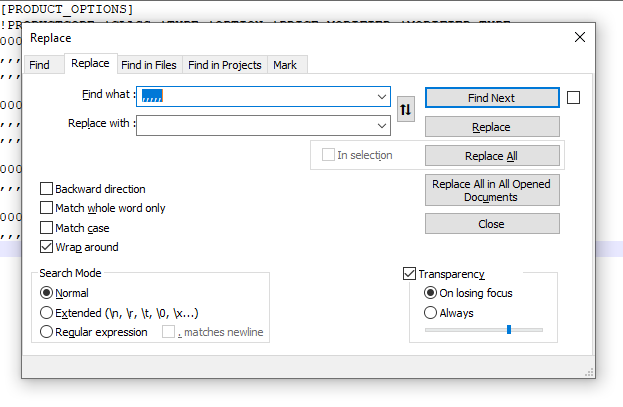
Figure 4
Now that you have completed the XCart you will have to save the document as a CSV UTF-8 (Comma delimited) file. Go to the location where you have saved the CSV file and open it with Notepad ++ by right clicking on the document and selecting "Edit with Notepad++". After you have opened the document press CTRL+F and click the second tab that is named "Replace" and in the "Find What" field, type 5 commas ",,,,,". Leave the "Replace with" field empty and then click on "Replace All" so anywhere there are 5 commas it will get replaced with empty space.
You can now save the document. Please do not open it with MS Excel again as some parameters might get modified.
Go to your store website, click on the Ecommerce > Catalog > Import or Export Products (under "Products" title on the right side) > Import Products.
Now go to the XCart tab, upload your file. There is a trick here, if your SKU is like this "00001" meaning that is a number and has 0 in front, your delimiter should be "Comma" but if you SKU is looking more like this "PRD9" the delimiter should be set as "Semicolon". The Character Encoding should be set to UTF-8 and the "Category path separator" leave it as the default "/". Click import and everything should be alright.
This is how the products should look after adding options: